The admin UI
The admin UI is the web front of one Angelia instance. It shows what Angelia watches, what came in on the wire
and where each release went, and it lets you add watches, sinks and subscriptions or replay a delivery without
a terminal. It is part of the binary: the api role serves it under /ui/, and every action goes through the
same REST API, with the same scope check, as the CLI.
Available from v0.3.0
The UI ships in v0.3.0 (release candidates v0.3.0-rc.1 and later). v0.2.0 has no UI and refuses the ui:
key. To turn it on, see Set up the admin UI.
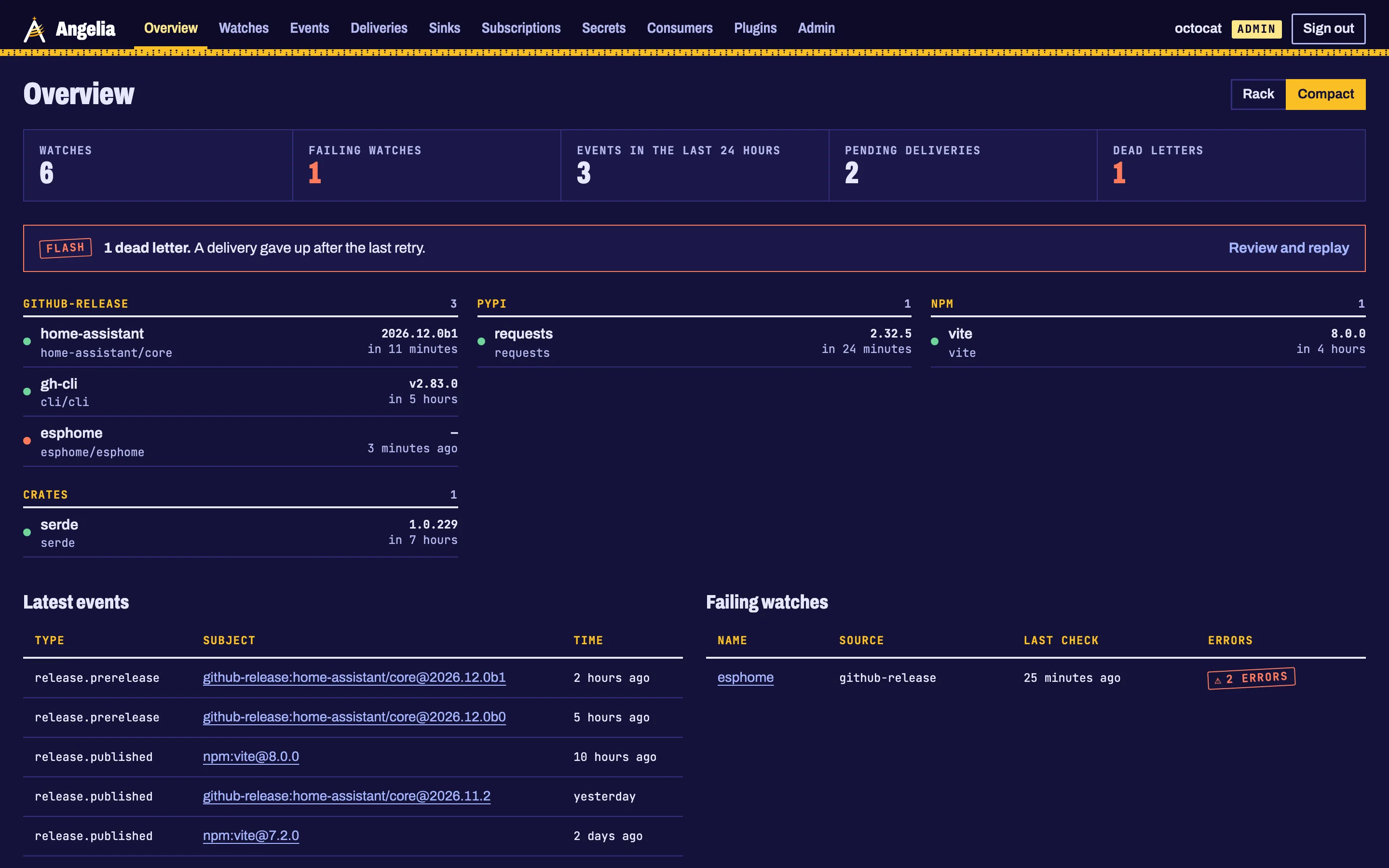
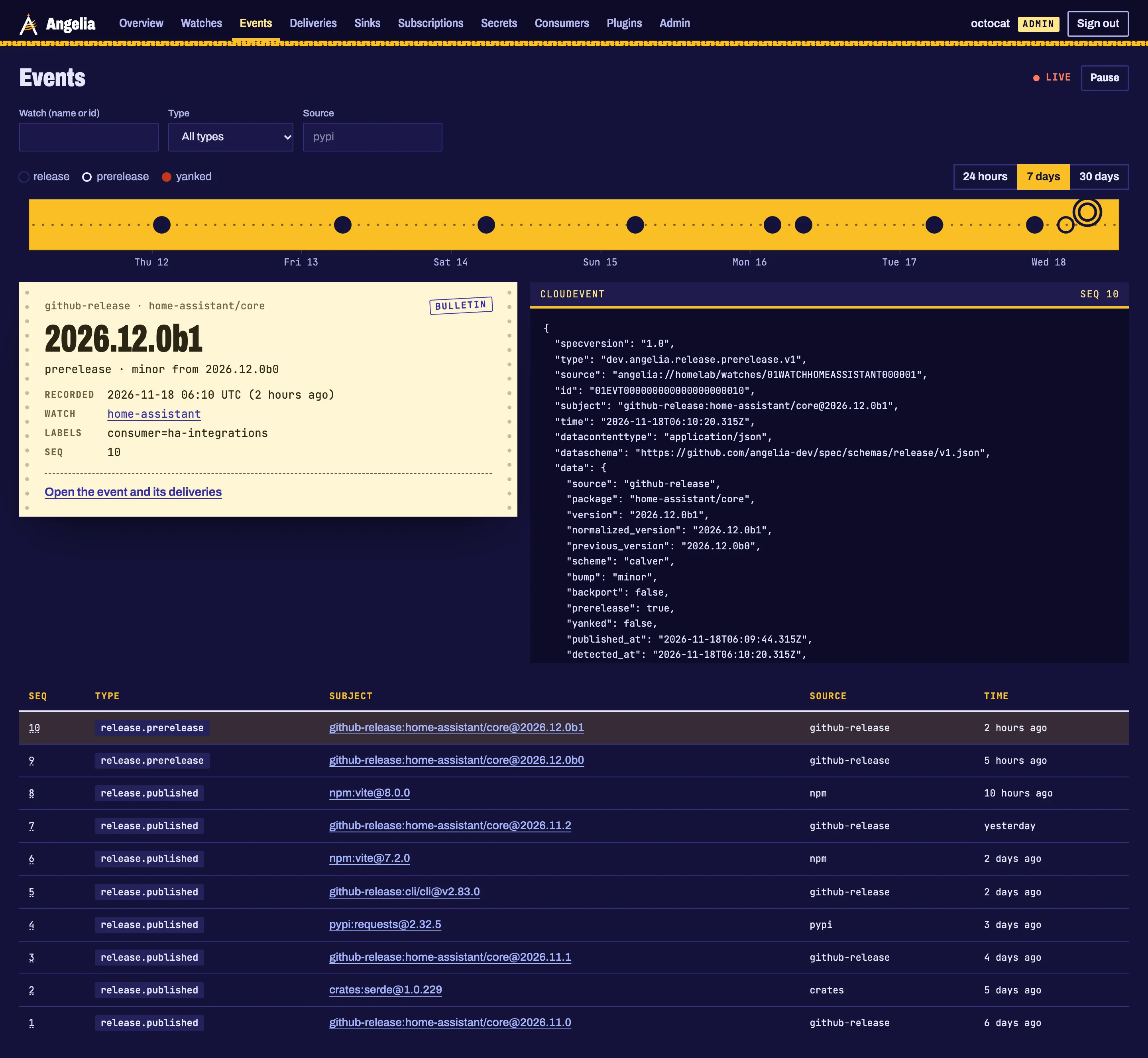
The screenshots on these pages come from a local instance filled with sample data. They follow your light or dark setting, like the UI itself.
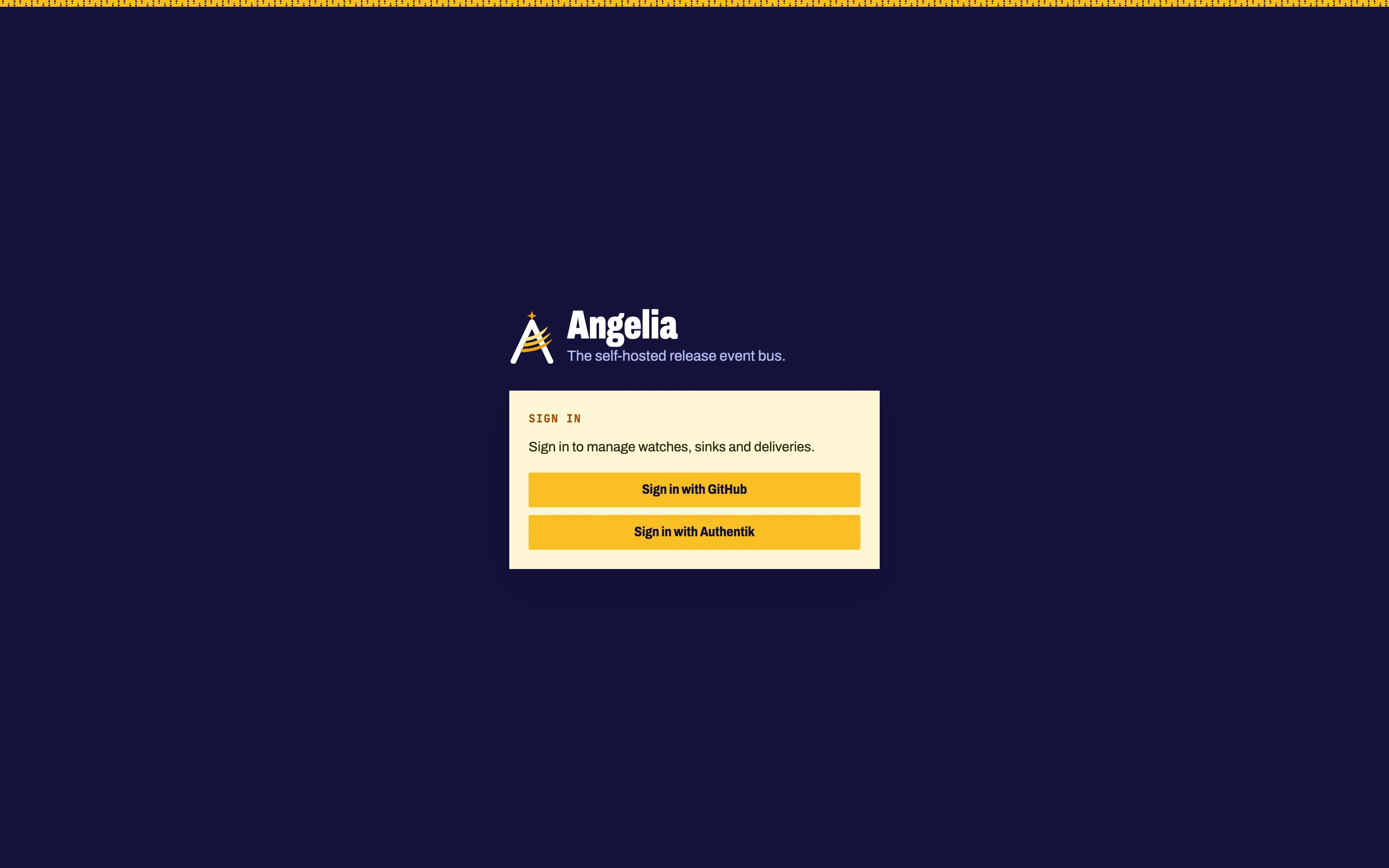
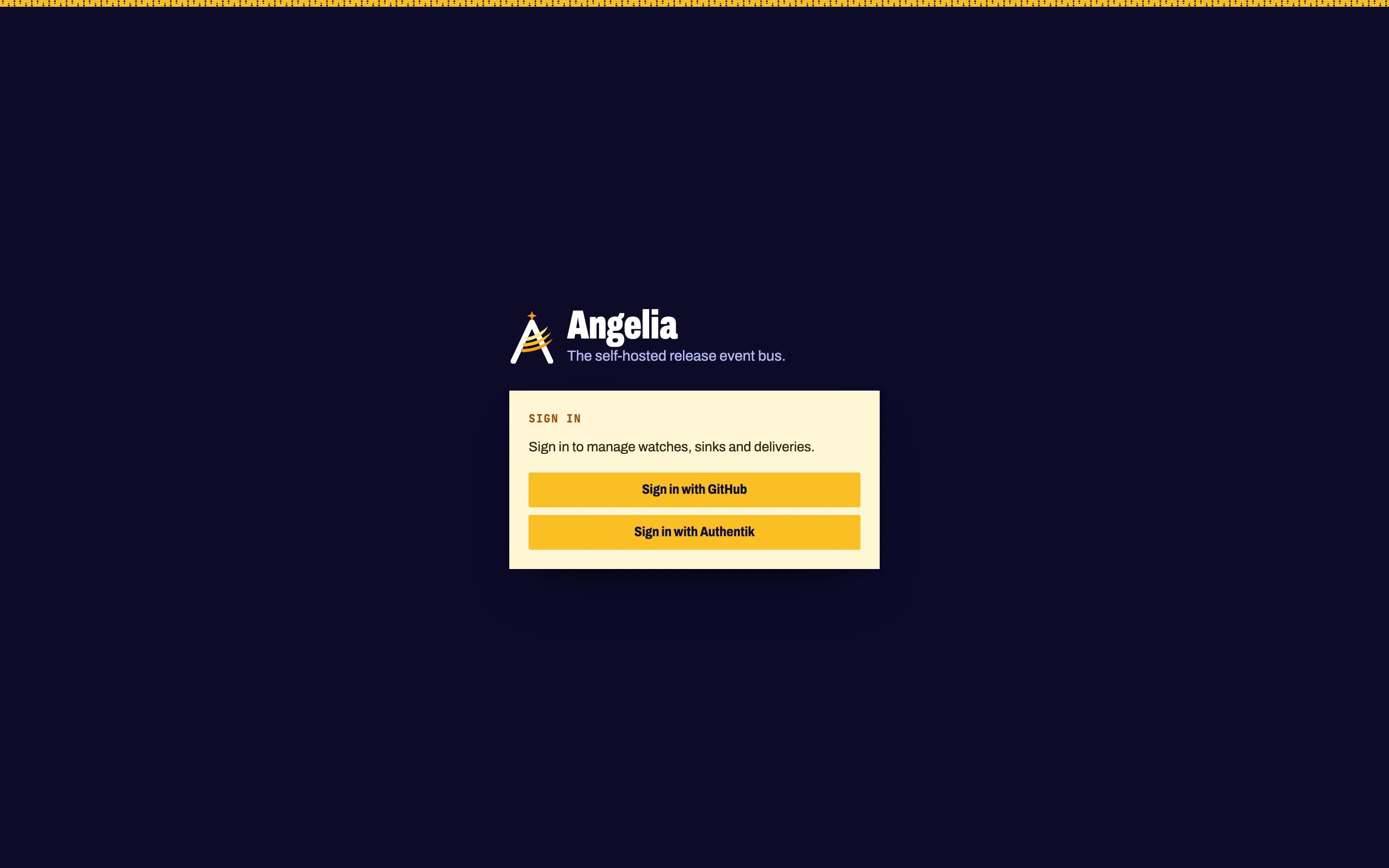
Sign in
People sign in with GitHub or with an OpenID Connect provider (Authentik, Keycloak, GitLab, Google). The
sign-in page shows one button per configured provider. Who may sign in, and with which role, is the
ui.access list in the instance configuration.
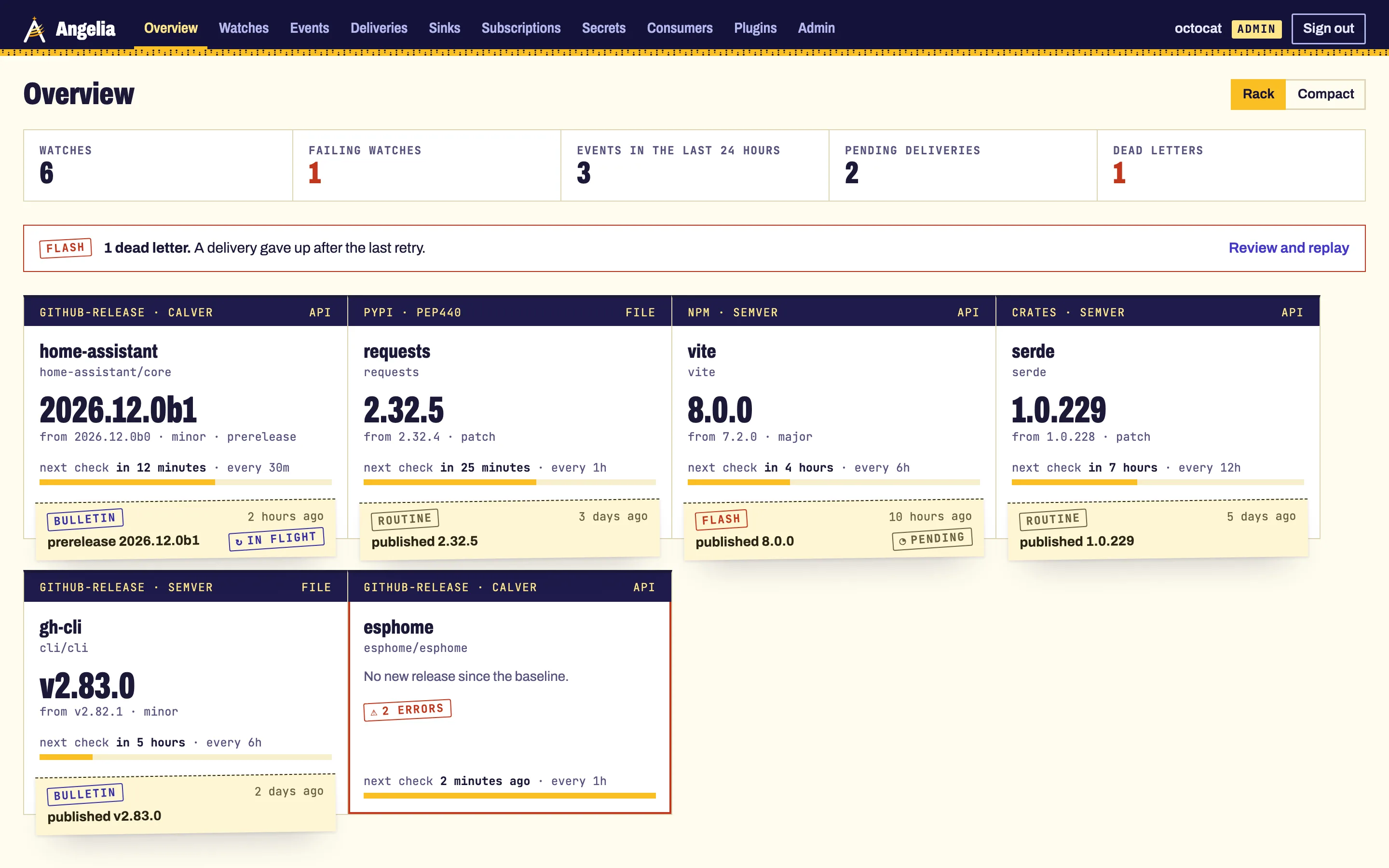
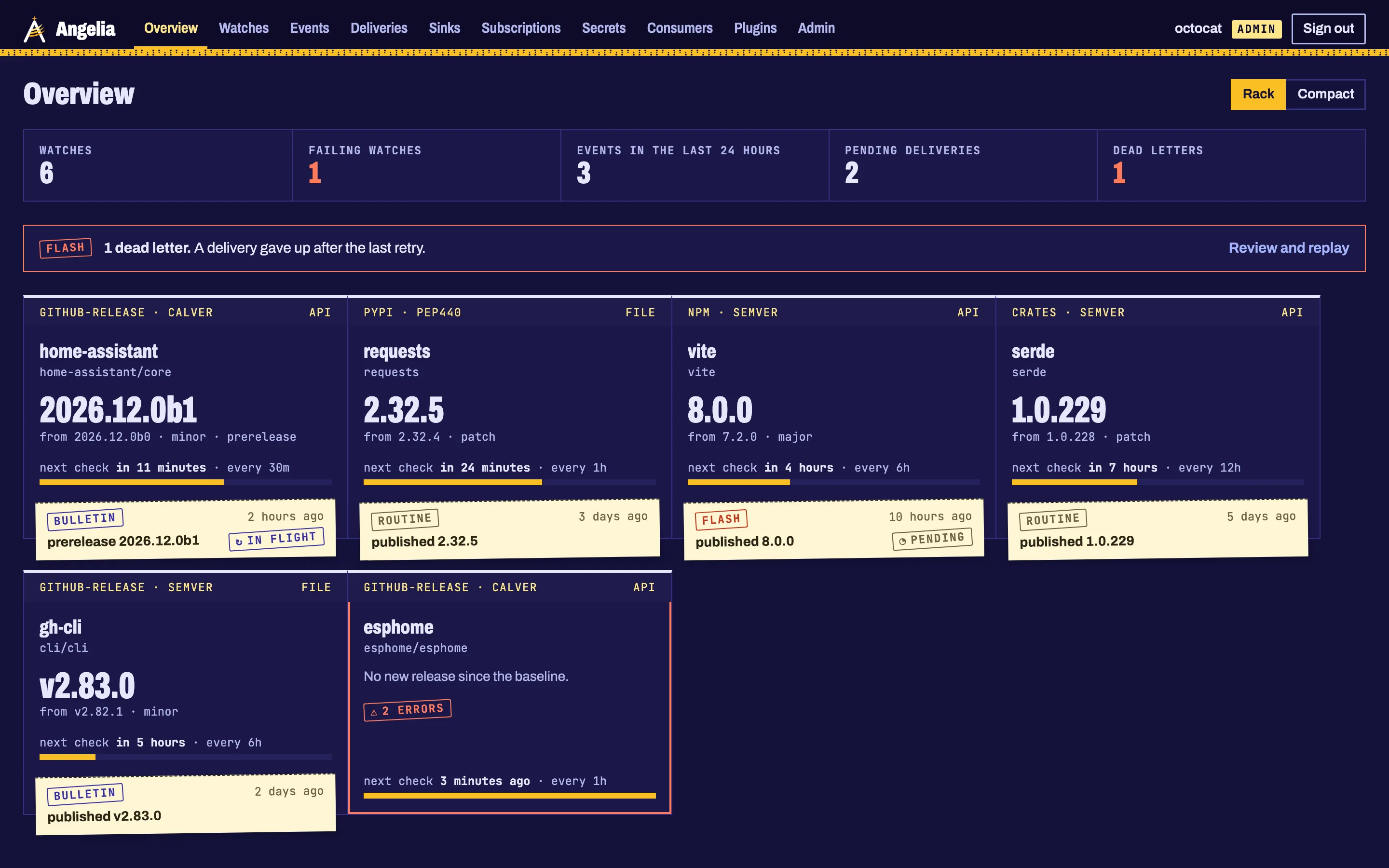
Overview: the sorting rack
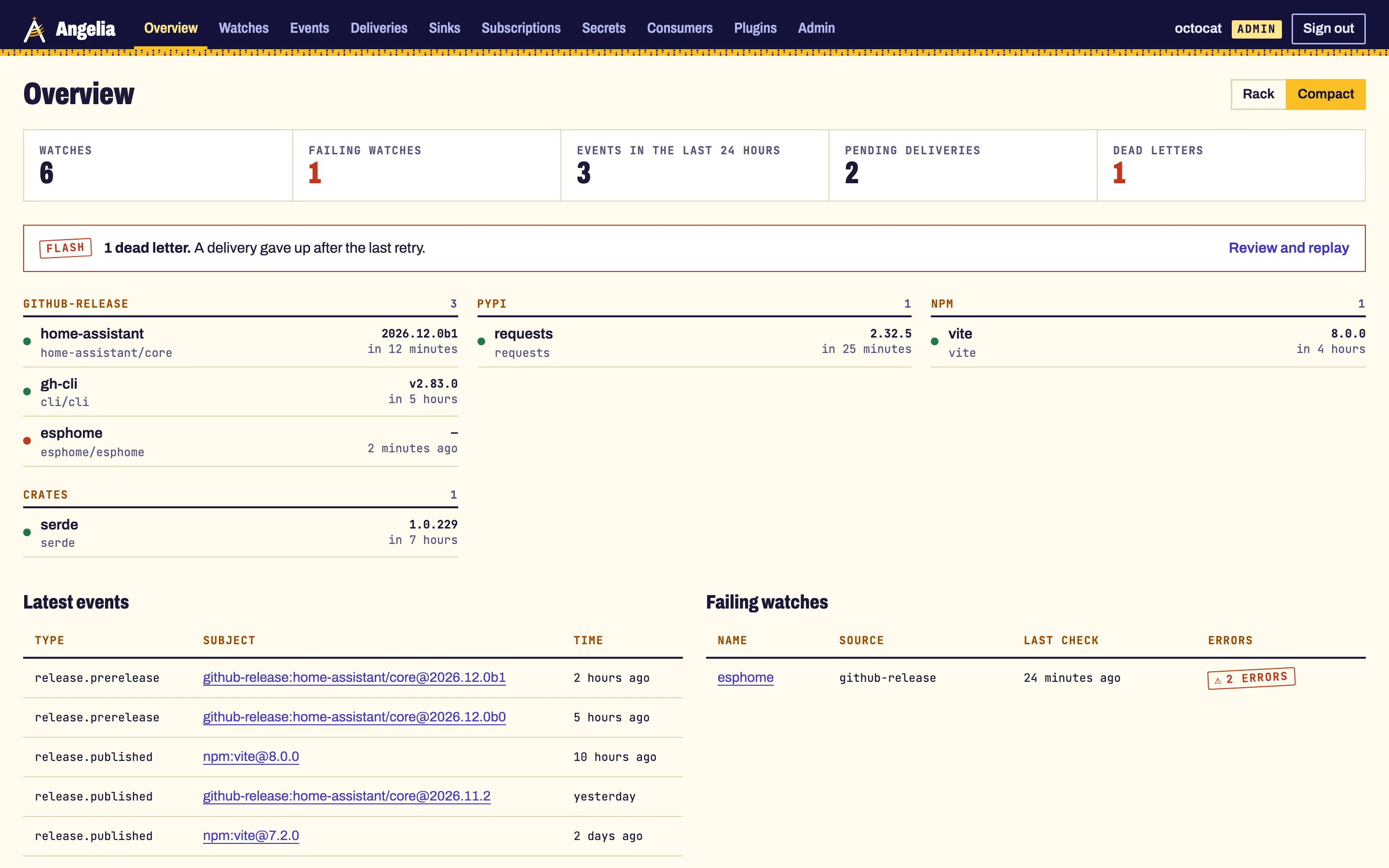
One pigeonhole per watch. Each cubby shows the source and version scheme, the latest release with its bump and the version before it, a gold meter counting down to the next check, and a paper slip with the last release. When that release has a delivery still pending or dead, the slip carries its stamp. A watch whose checks fail is outlined in red with its error count.
The counts on top turn red when something needs you: failing watches, dead letters. A dead-letter notice links straight to the deliveries to replay.
With many watches (more than 24) the rack opens in its compact form, grouped by source. The Rack / Compact switch keeps your choice in this browser.
Events: the punched tape
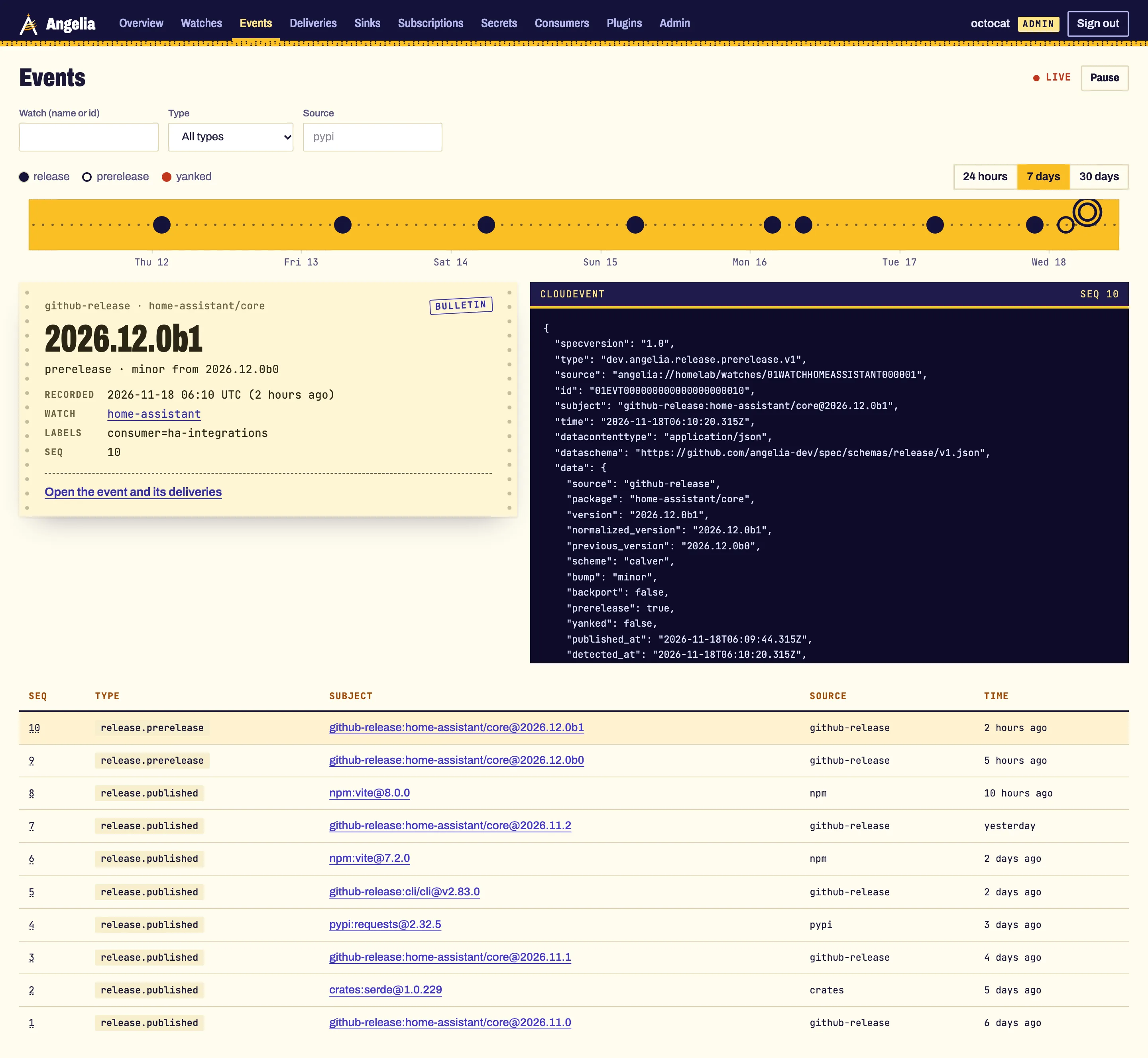
The last 24 hours, 7 days or 30 days as a gold tape, one hole per release: solid for a release, a ring for a pre-release, red for a yank. Click a hole, or use the arrow keys (Home and End jump to the ends), and the release opens below as a bulletin slip next to its signed CloudEvent. The ledger under it lists the same events; the sequence number moves the tape to that event. New events arrive live from the event stream; the Pause button stops it.
The other pages
| Page | What you do there | Role |
|---|---|---|
| Watches | List, filter by source or label, create, edit and delete API-managed watches. A watch's page shows its status, policy and known versions. | viewer reads, editor writes |
| Deliveries | Filter by status (dead letters first), subscription, sink and time; replay one delivery or a range. | viewer reads, editor replays |
| Sinks | Create and edit API-managed sinks. Secret values are never shown. | admin |
| Subscriptions | Which sink gets which events; preview a message template on a sample event. | editor |
| Secrets | Stored secrets (*_ref keys), encrypted at rest. Values are write-only. |
admin |
| Consumers | Pull consumers and how far each has read. | viewer |
| Plugins | The installed sources and sinks. | viewer |
| Admin | API tokens, browser sessions (revoke one) and the ui.access list. |
admin |
Rows that come from the watch file carry a file badge and have no edit controls: change them in the file and
restart, or apply it with angelia apply.
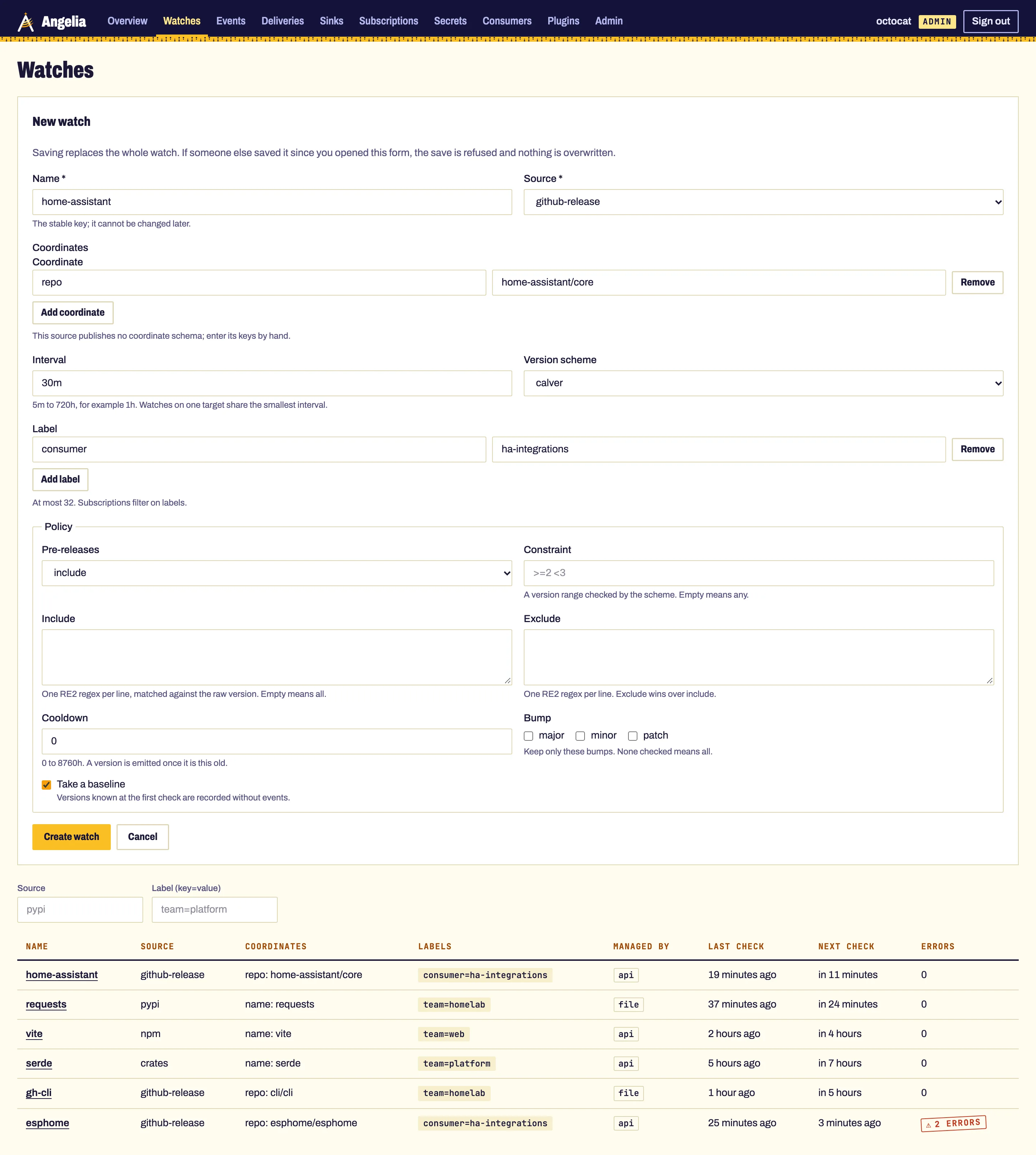
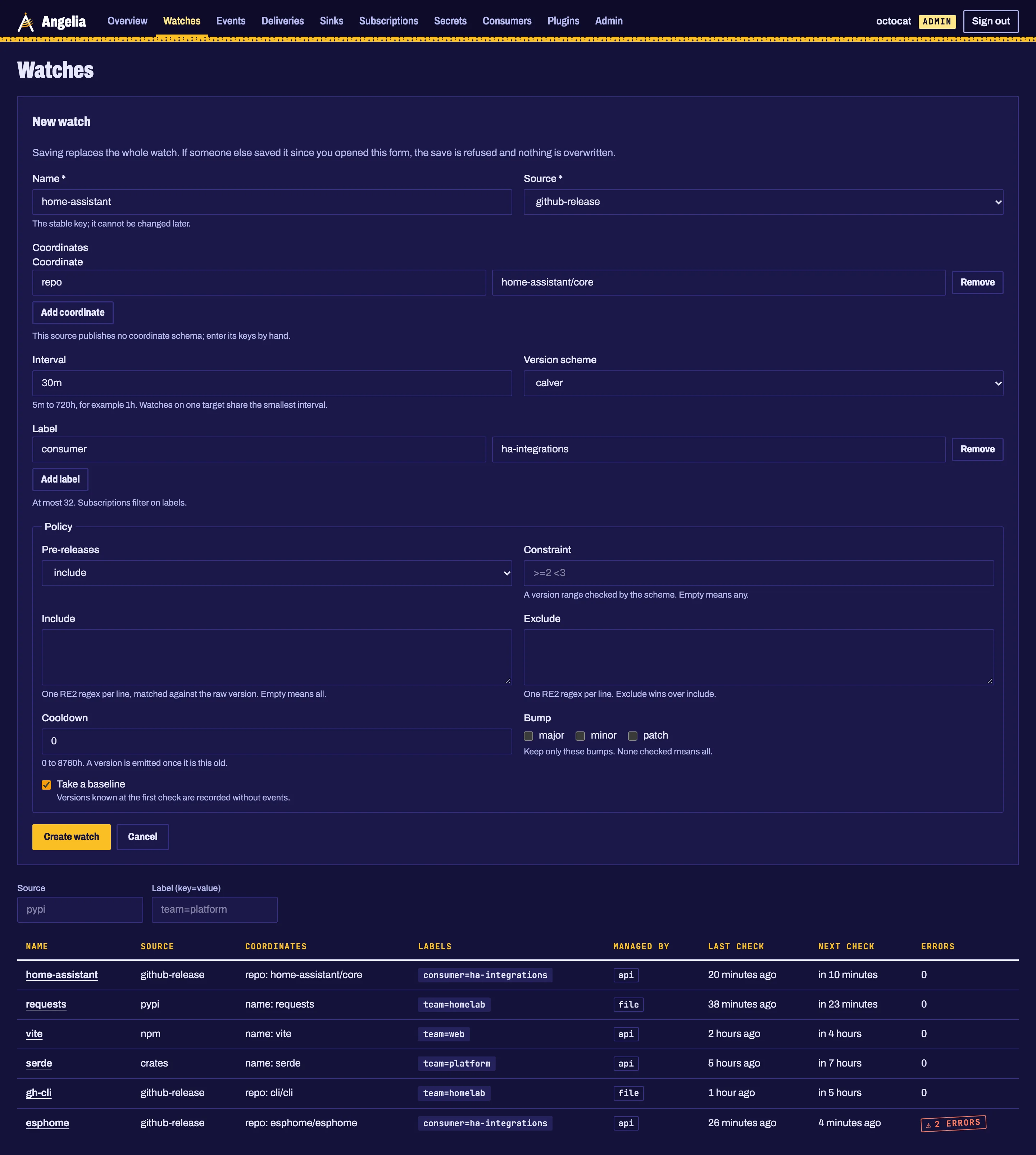
Every save is conditional. An edit sends the version it read; if someone else saved first, nothing is overwritten and the form keeps your input.
Roles
Each ui.access entry gives one role, the same as an API token scope.
| Role | Scope | Can |
|---|---|---|
viewer |
read |
read every page |
editor |
write |
also manage watches, subscriptions, replays and consumers |
admin |
admin |
also manage sinks, secrets, API tokens, sessions and see the access list |
Next
- Set up the admin UI: the
ui:keys, the GitHub OAuth App, OpenID Connect, the access list. - After the first install: add your first watch, sink and subscription from the UI, step by step, with the Home Assistant example.
Source: angelia-dev/angelia #284 (Release Wire design, #285) and ADR 0033.